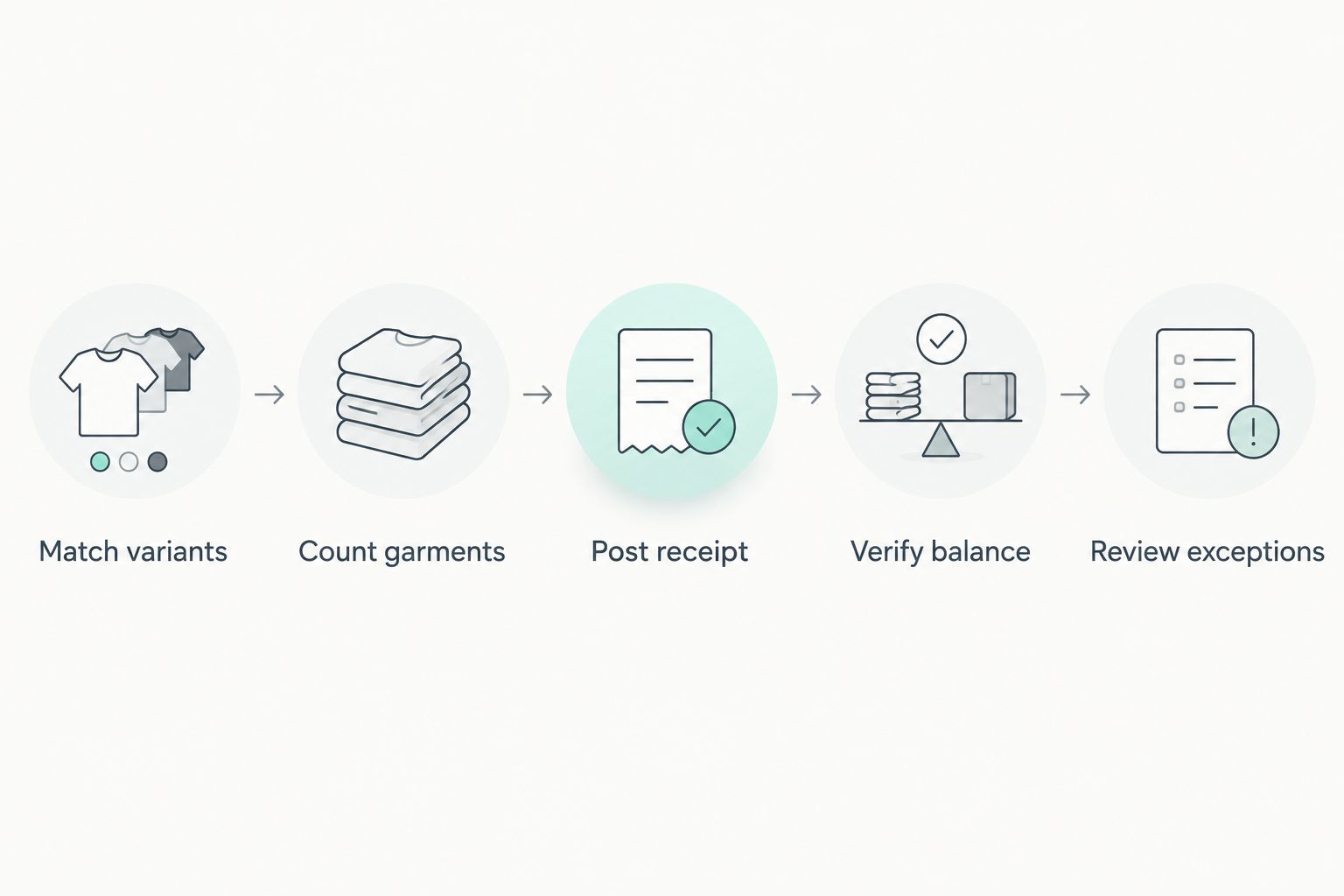
Instead of manually retyping every wholesale delivery, sync wholesale stock to POS inventory through a controlled workflow: match garment variants, receive counted units, then let your POS record sales and returns. For your 2026 setup, confirm the transfer method with your supplier and POS provider before enabling automated writes.
- Blkwd wholesale menswear suits retailers buying clothing for resale; use your POS to control received inventory.
- To sync wholesale stock to pos inventory, match each garment variant before importing quantities.
- Keep supplier quantities separate from units physically received into your shop.
- Test receipts, sales, returns and repeated imports before enabling unattended inventory updates.
Why this matters
Blkwd wholesale menswear is best for retailers buying men's clothing for resale, not shoppers seeking inventory software. Blkwd is an Australian clothing retailer with wholesale options; confirm the data-transfer arrangements separately from your purchasing arrangements.
A wholesale order and a shop's inventory balance describe different things. An order records what you requested; your POS must record what you actually received, sold, returned or removed.
For a 2026 inventory workflow, protect that distinction before choosing an integration. Copying a supplier-side quantity into your shop's on-hand field does not establish how many garments are on your shelves.
Before you start
- Access: Have permission to manage products, variants, receiving and inventory adjustments in your POS. Obtain the wholesale order or delivery documentation and confirm whether an authorised export or supported integration exists.
- Materials: Prepare your existing product records, variant identifiers, location list and a physical count of the delivery. Export a backup of the records that your first update will affect.
- The gotcha: Decide whether incoming quantities represent a delivery movement or a replacement balance. Adding the same receipt twice duplicates inventory; replacing a live balance with an earlier count can erase subsequent sales.
Use the headings below as configuration tasks, not universal menu names. POS interfaces differ, so follow your provider's documented controls rather than looking for an assumed button or screen.
Product and variant mapping
Establish the matching rules
- Identify the unique record for each sellable garment variant in your POS. Match the actual size and colour combination, not just the shirt or trouser name.
- Record the supplier's variant identifier alongside your internal identifier. Preserve leading zeroes and treat identifiers as text when preparing a spreadsheet.
- Check whether a barcode identifies the same variant. Do not substitute a barcode for an internal SKU without confirming how your POS matches imported records.
- Assign each receipt to its destination location. Keep the shop floor, stockroom and other locations separate wherever your POS tracks them separately.
- Quarantine unmatched rows instead of creating products automatically. Resolve ambiguous variants before changing quantities.
Expected result: Every incoming row points to one intended variant at one intended location, with no matching based on product titles alone.
Your mapping worksheet should distinguish the following concepts. These are descriptive field names, not claims about the labels in your POS.
| Mapping concept | What belongs here | Validation rule |
|---|---|---|
| Supplier variant | Identifier from the authorised source | Preserve the original value |
| POS variant | Identifier used by your inventory system | Match an existing intended record |
| Size and colour | Attributes from the garment and documentation | Investigate any disagreement |
| Destination location | Place receiving the goods | Match your location records |
| Quantity meaning | Receipt movement or counted balance | Never leave the meaning implicit |
| Receipt reference | Identifier for this delivery event | Check whether it was already processed |
Do not let a spreadsheet convert a long identifier into scientific notation. Open the prepared file and inspect the identifiers before importing it; a visually similar value is not sufficient evidence of a match.
Choose the transfer method
Select a method only after confirming what your supplier and POS actually support. For the initial 2026 rollout, choose the simplest supported method that preserves variant matching and a receipt history.
| Method | Best for | Advantage | Limitation |
|---|---|---|---|
| Manual receiving | Retailers checking an initial delivery | Lets you inspect each mapping before posting | Requires repeated entry |
| Supported file import | Retailers with an authorised export and compatible POS import | Transfers prepared rows together | Requires careful column and quantity validation |
| Supported integration | Retailers with a confirmed connector or documented API route | Reduces repeated transfer work | Requires monitoring, permissions and duplicate protection |
A file import is not automatically a recurring sync. An integration is not automatically suitable for receiving wholesale deliveries. Confirm the event it transfers, the quantity it writes and the location it changes.
Receiving and quantity rules
Separate receipts from balances
- Count the garments physically received. Compare the count with the delivery documentation before posting the receipt.
- Separate damaged or disputed garments from the quantity accepted into saleable inventory. Record their treatment through your documented receiving process.
- Choose whether the operation adds a receipt quantity or sets a counted balance. Use your POS provider's documented behaviour to make that decision.
- Assign a receipt reference that allows you to identify a repeat attempt. For an automated process, require a duplicate check before another write occurs.
- Recheck live inventory before posting a replacement balance. Account for any sales, returns or adjustments made since the count or export.
Expected result: The receiving event changes the intended location's inventory once, using a clearly defined quantity operation.
A supplier's inventory balance is not your shop's on-hand balance. Keep supplier-side information separate from locally received garments unless a documented fulfilment arrangement explicitly requires another model.
For a receipt movement, the working relationship is opening balance plus accepted units received, minus units sold or otherwise removed, with approved returns and adjustments recorded separately. Use the POS's own inventory ledger to reconcile those movements rather than keeping a competing total in a spreadsheet.
Organise the physical receiving check
Keep garments awaiting inspection separate from accepted garments. Compare garment labels with the mapped variant while the delivery is still grouped for receiving, rather than discovering a mismatch after items reach the shop floor.
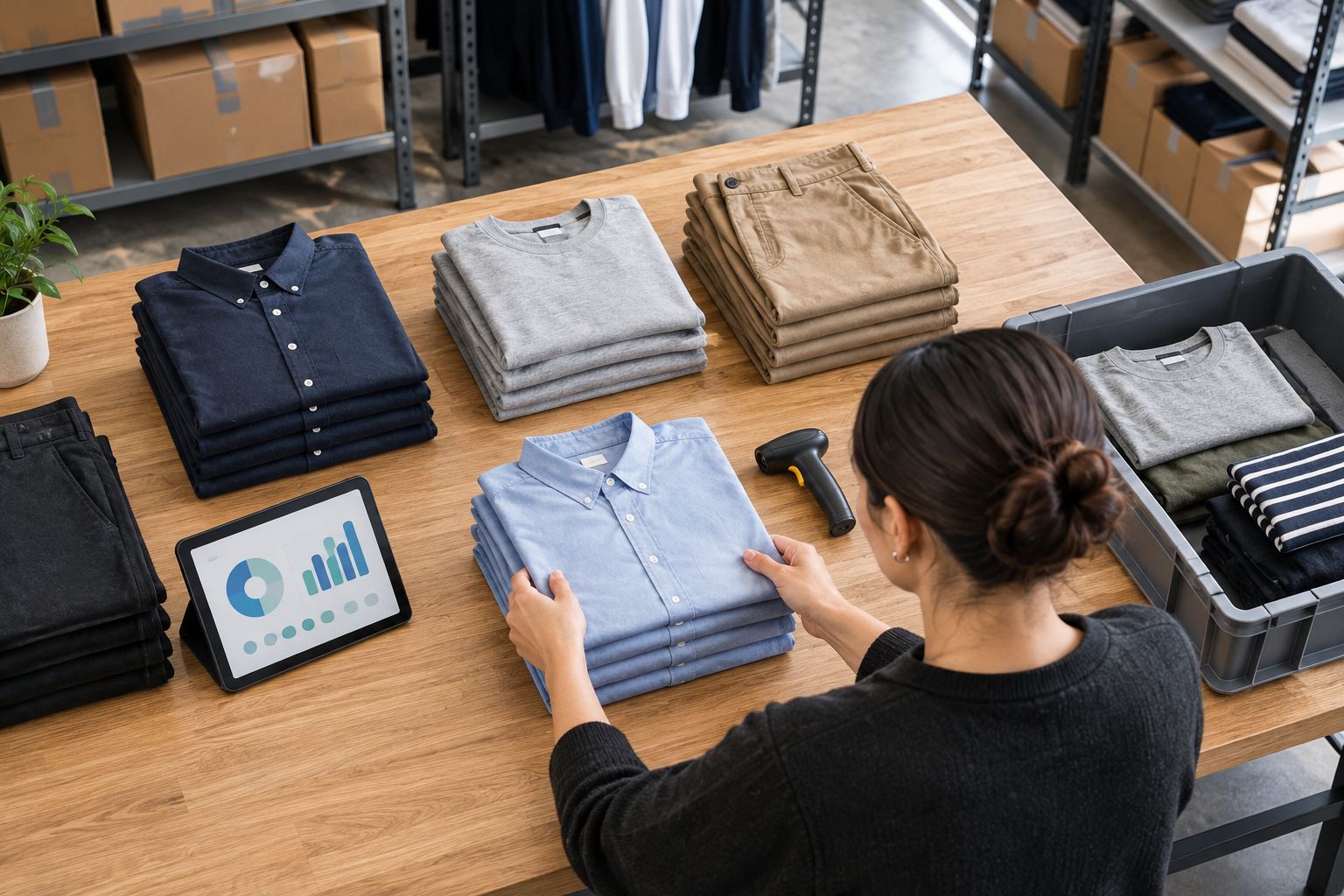
The physical check remains necessary even when a file or connector transfers the data. Automation moves records; it does not establish that the delivery matches those records.
Test transactions and exception controls
Validate a small batch
- Use a sandbox or training environment where your POS supports one. Otherwise, arrange a controlled live test with a documented reversal procedure.
- Select 1 garment variant and record its opening balance at the receiving location. Keep unrelated activity out of the test where practical.
- Receive 1 unit through the proposed workflow. Confirm that the location balance increases by 1 unit and the ledger records the receipt.
- Process a test sale of 1 unit through the approved test procedure. Confirm that inventory decreases by 1 unit.
- Test a return using the correct condition and restocking decision. Confirm that only a return accepted back into inventory increases the balance.
- Submit the same receipt reference again in the test environment. Confirm that the duplicate is blocked or held for review rather than posted again.
Expected result: Receipts, sales and accepted returns change the correct variant, while a repeated receipt does not add another movement.
These figures are test instructions, not product quantities or performance claims. Record the actual result of each action, including its transaction reference, before expanding the workflow.
Set the operating controls
For your 2026 operating procedure, name the person responsible for unresolved exceptions. A failed import needs an owner, not just a notification.
Require a record of the source reference, destination variant, location, quantity operation and outcome. Restrict any connector's permissions to the functions it needs, using the controls your platform supports.
Do not enable unattended updates until a failed or repeated operation has a defined recovery path. If the connection stops after writing some rows, reconcile those rows before retrying the whole batch.
Variant workflow: update existing stock after a sale or return
Receiving wholesale deliveries and updating inventory after checkout are adjacent workflows, but they need different triggers. Receipt data adds accepted incoming garments; checkout and returns record movements against garments already held.
For Blkwd wholesale menswear held in your shop, keep the POS responsible for its own sales movements. Do not infer that a retail sale should also modify a supplier's inventory record.
- Identify which system records the sale or return first. If you sell through another connected channel, document the supported direction of inventory updates.
- Match the same variant and location identifiers used for receiving. Avoid a second mapping based on titles or descriptions.
- Ensure a transaction returning through a connector cannot be applied twice. Check this behaviour with your provider before enabling bidirectional updates.
- Test a cancelled order separately from a completed sale and a physical return. Confirm when each event changes inventory in your configuration.
Expected result: Each business event produces the intended inventory movement without circulating between systems and being counted again.
The benefit of a shared inventory workflow is less repeated entry. Its limitation is greater dependence on consistent identifiers and correct event handling across systems.
Troubleshooting
The import created duplicate garments
Stop further imports and inspect the matching rule. A process matching by title, or creating a new record when a SKU is blank, can separate transactions that belong to the same variant.
Correct the mapping first. Follow your POS provider's procedure for resolving duplicate records so that sales history and inventory movements remain traceable.
A second run increased the quantity again
Check whether the operation adds a movement rather than replacing a balance. An additive receipt must not be replayed as a new delivery.
Find the original receipt reference and reconcile the movements already posted. Reverse the duplicate through the documented adjustment process; do not hide it with an unexplained replacement count.
The right garment changed at the wrong location
Compare the incoming location mapping with the destination recorded in the inventory ledger. A default location can be wrong even when the SKU match succeeds.
Correct the location rule before retrying. Use a documented transfer or reversal to repair the movement rather than editing unrelated locations until the total appears correct.
The imported balance no longer matches checkout
Check the timing of the source count and subsequent sales. A replacement balance prepared before checkout activity does not include those later movements.
Pause replacement writes and reconcile the ledger. Resume only after the workflow accounts for activity between extraction and posting.
A size or colour will not match
Inspect identifiers for missing leading zeroes, added spaces, changed capitalisation and spreadsheet formatting. Then compare the actual garment attributes with both records.
Keep the row out of the update until the match is confirmed. Do not assign it to a similar-looking variant simply to clear an error.
Customise your workflow
Once receiving works, extend the same mapping to other supported sales channels. Keep the 2026 receiving procedure separate from merchandising tasks: changing a description or photograph should not require rewriting an inventory balance.
If you also sell online, use the guide to listing Blkwd wholesale stock on your Shopify store alongside your platform's current integration documentation.
Add automated exception reporting before adding more write destinations. A report of unmatched variants, rejected receipts and unconfirmed outcomes gives staff a defined queue to resolve without silently changing inventory.
FAQ
How do I sync wholesale stock to POS inventory?
Match each wholesale garment variant to its POS record, count the delivery and post an authorised receipt movement. Use a supported file import or confirmed integration only after testing its quantity behaviour and duplicate handling.
Can I connect Blkwd directly to my POS?
Confirm a supported connection with Blkwd and your POS provider before planning direct automation. Verify the transfer method, permissions, variant identifiers and quantity meaning before allowing inventory writes.
Should supplier quantities replace my shop's on-hand inventory?
No: supplier quantities and your shop's physically received inventory describe different holdings. Keep them separate unless a documented fulfilment arrangement explicitly defines another inventory model.
Is a file import better than an integration?
A supported file import suits controlled batch receiving; a supported integration suits recurring transfers with monitoring and duplicate protection. Choose the method whose behaviour you can verify, rather than assuming automation makes the data correct.
What happens when the same wholesale receipt imports twice?
An additive receipt can increase inventory twice unless the workflow prevents repeat processing. Check the receipt reference and posted movements before retrying or reversing an update.
Do I need a separate record for each clothing size?
Each separately tracked sellable size and colour combination needs an unambiguous variant record. A product title alone does not identify which garment's quantity should change.
How should returns update POS inventory?
Only returns accepted back into inventory should increase the relevant balance. Record the garment's condition and use your POS's documented restocking procedure rather than treating every refund as a stock return.
One last thing
Test the same receipt twice before trusting it once. A successful first import proves that data can enter the POS; a safely rejected repeat proves that a routine retry will not quietly create another delivery.
Keep that duplicate test in your 2026 checklist whenever the connector, import template or matching rules change.