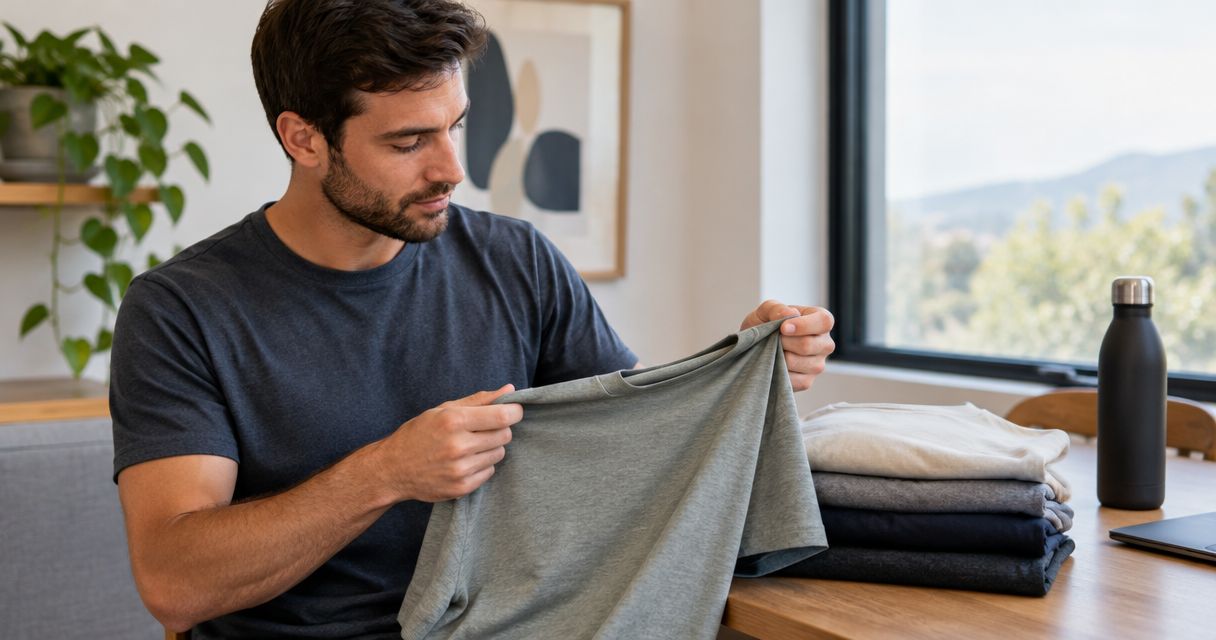
Instead of manually rebuilding product details for every Instagram post, feature wholesale stock on Instagram Shop by connecting your retail catalogue, checking product eligibility, and tagging approved items in your content. This guide covers the setup for Blkwd menswear, with an eligibility check before you connect anything.
- To feature wholesale stock on Instagram Shop, connect your retail catalogue before creating product-tagged posts.
- Blkwd supplies menswear with wholesale options; retailers must manage their own Meta account permissions and catalogue.
- Use catalogue synchronisation for ongoing updates, but review product approval and post tags separately.
- Check Instagram shopping eligibility in your account before committing to the workflow in 2026.
Why this matters
A product photo, a catalogue entry and an Instagram product tag serve different purposes. The photo shows the garment, the catalogue identifies it, and the tag connects the content to that catalogue record. Uploading a photograph alone does not create a shoppable product.
Blkwd wholesale menswear is best for retailers building a men's clothing range, not retailers seeking catalogue-management software. The brand sells clothing with wholesale options; the connection between your store and Instagram remains a separate retail setup.
Start with the actual garments you intend to sell, using Blkwd as the brand reference rather than treating a supplier's website as your own retail catalogue. Your product tags should lead into your approved retail shopping experience.
For your 2026 setup, check the commerce features shown inside your own Meta account. A professional Instagram account does not, by itself, establish eligibility for Shops or product tagging.
Before you start
- Account access: Have access to your Instagram professional account, the relevant Facebook Page and Meta business portfolio, and the catalogue you intend to use. Confirm that you can manage these assets, not merely publish social posts.
- Product materials: Prepare your own retail product pages, stable product identifiers, accurate garment descriptions, variant records and photographs you have permission to use. Confirm image-use permission with Blkwd before publishing supplier photography.
- The gotcha: Check your account's shopping eligibility and supported commerce features before installing a connector. A store connection cannot override Meta's account, country or commerce-policy restrictions.
Treat this as a gate. If your account does not offer the required shopping features, use Instagram content to direct shoppers to your retail website through the linking features your account supports. Do not describe ordinary posts as product-tagged shopping posts.
Retail catalogue configuration
Choose the catalogue source
Decide where product records will be maintained before adding items to Meta. Use your retail store as the source when it already contains the product information you want customers to see.
| Catalogue approach | Best for | Advantage | Limitation |
|---|---|---|---|
| Connected store catalogue | Retailers maintaining products in an ecommerce platform | Reduces repeated entry when supported fields synchronise | Connector errors and product rejection still need attention |
| Manual catalogue entry | Retailers checking a small initial selection | Gives direct control over each submitted record | Changes must be maintained separately from the retail store |
Use a connected store catalogue when your product records already live in an ecommerce platform. Manual entry is useful for a controlled pilot, but maintaining the same garment in separate systems creates extra work.
- Select 1 product for the first test. Choose a garment with a complete retail page and clear photographs, rather than importing your entire range immediately.
- Check its title, description, destination page and identifier. Keep the identifier stable when you later change descriptive text.
- Separate genuine variants from different products. If the test garment has 2 variants, make sure each variant maps to the correct selection on your website.
- Remove wholesale-only wording from customer-facing descriptions. Your retail listing should explain the garment, not internal purchasing arrangements.
- Check every factual statement against the supplier information you hold. Do not turn a fabric description into an unsupported performance claim.
Expected result: You have a complete retail product record that can be submitted without reconstructing its details inside Instagram.
Prepare useful garment information
For menswear, describe what a shopper needs to identify: garment type, colour, documented fabric composition and documented fit. Keep sizing information consistent with the actual product rather than applying a generic size chart across unrelated garments.
Use photographs that distinguish the item clearly. A front view helps identification; a closer view can explain a collar, fastening or fabric detail. Include only views that accurately represent the garment being tagged.
Meta account and catalogue connection
Connect the correct business assets
The connection must join your retail store, your catalogue and your Instagram identity. Connecting the wrong business portfolio can leave an apparently successful integration pointing at assets you cannot use.
- Open Meta Commerce Manager using the login that manages your business assets. Select the intended catalogue rather than creating another one automatically.
- Open Settings and inspect the people and business assets associated with the setup. Resolve missing access before attempting publication.
- If you use Shopify, open Sales channels and select Facebook & Instagram after installing the official channel. Follow its account-connection prompts using the same business identity.
- Select your intended Facebook Page, Instagram account and catalogue wherever the connection asks you to choose them. Read each selection before confirming.
- Complete any account review, business-information or website-verification requirements shown in your account. Submit accurate details rather than creating duplicate assets to bypass a restriction.
Expected result: The integration points to the intended business assets, and you can identify the catalogue that Instagram is meant to use.
Submit and inspect the product record
A connected channel is not proof that a garment has passed catalogue checks. Inspect the item itself before preparing a tagged post.
- In Commerce Manager, open Catalog, then Items, and find your test garment.
- Open the record and compare the title, image and destination page with your retail store. Confirm the destination opens the garment, not a homepage or collection.
- Inspect any item-level warnings or rejection explanations displayed in the account. Correct the underlying source record when a connector manages the catalogue.
- Check variant mapping against the retail page. Confirm that a colour-specific image does not lead to a different garment or selection.
- Wait for the item and account to meet the requirements shown by Meta before trying to tag the product.
Expected result: You can locate the correct product in the intended catalogue and distinguish a connection problem from an item-review problem.
For a 2026 catalogue audit, record which store and connector own each field. That makes later corrections traceable and prevents a manual catalogue edit from being overwritten by the next synchronisation.
Instagram post configuration
Match the image to the catalogue item
Build the post around an identifiable garment. An outfit photograph can provide context, but the customer should still understand which item the product tag represents.
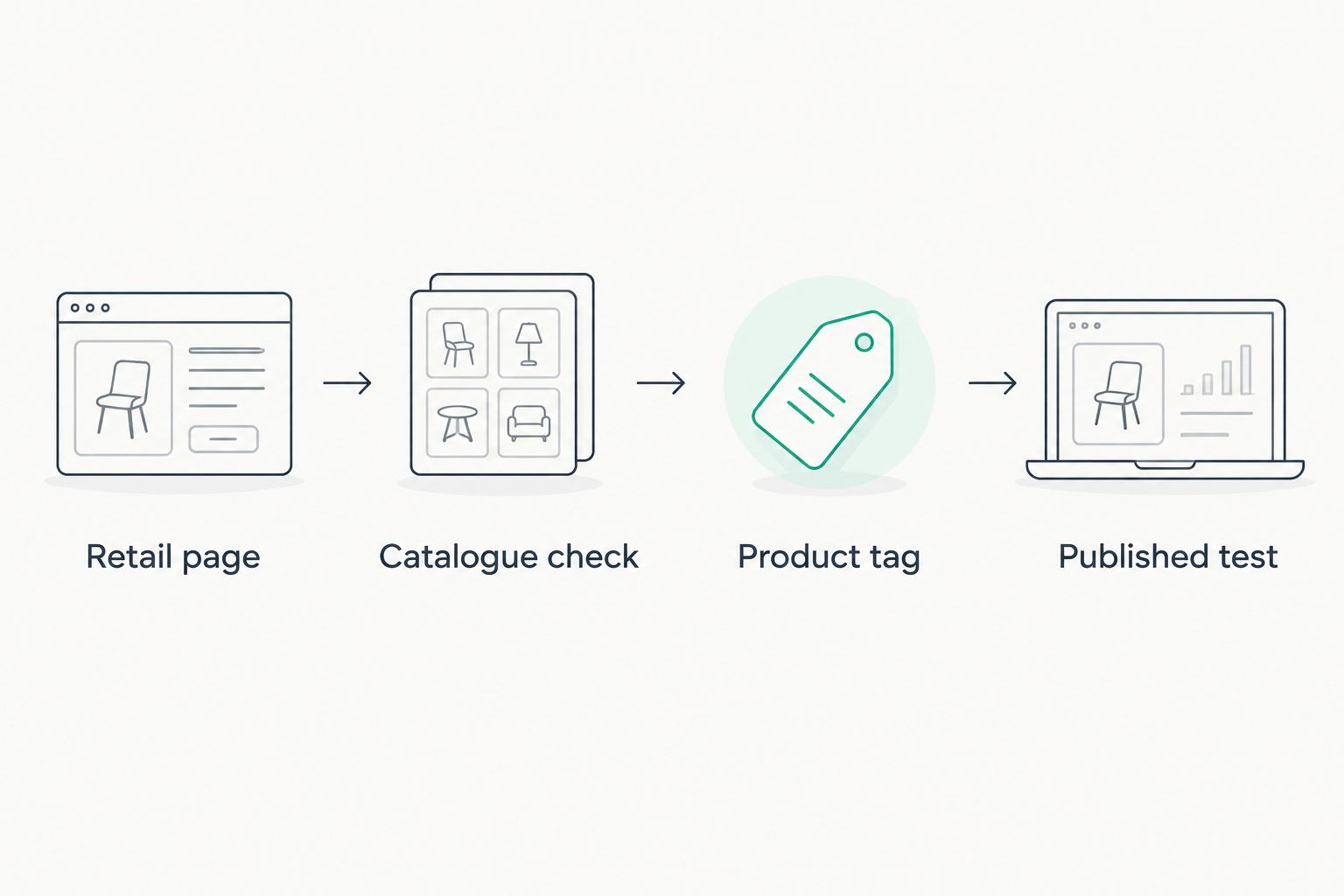
Keep the process in this order: Retail page, Catalogue check, Product tag, Published test. Each stage depends on the preceding stage being correct.
- Create a new Instagram feed post using a photograph you are authorised to publish. Start with 1 test post rather than scheduling a full campaign.
- Continue to the post details screen. If Tag products is shown for your eligible account, select it.
- Select the garment in the image and search for the matching catalogue item. Confirm the product identity instead of selecting the first similar name.
- Write a caption that describes the garment accurately. Do not add unverified fabric, fit or care claims to make the caption sound more specific.
- Select Share when the image, caption and product association are correct.
Expected result: The published post associates the pictured garment with the intended catalogue record, provided the account and item support product tagging.
If Tag products does not appear, stop at the account-and-catalogue checks. Reinstalling the store channel does not resolve every eligibility restriction.
Check the shopper's path
Open the published post from another account where practical. Tap the product tag and follow the shopping path presented to that viewer.
Check the garment identity, image and destination. Confirm that the retail page works on mobile and that its variant choices are understandable. A correct catalogue record still needs a usable destination page.
For 2026 content planning, document this path before copying the format across other posts. Do not assume every account or audience receives an identical shopping interface.
Second workflow: update details without rebuilding posts
Once the initial connection works, use catalogue synchronisation to maintain supported product fields. Synchronisation updates catalogue data; it does not automatically create Instagram posts or rewrite captions. Those are separate publishing tasks.
- Edit the product in your chosen source system. For a connected store catalogue, make the change in the store rather than editing the same field independently in Meta.
- Allow the configured connector or feed to process the change. Check its status instead of assuming an immediate update.
- Inspect the product in Items and confirm that the intended field changed.
- Reopen a previously tagged post and inspect the product association. Check the caption separately, because manually written copy does not become catalogue-managed text.
- If a garment has become a genuinely different product, give it an appropriate new record rather than reusing an unrelated product identifier.
Expected result: Product information follows a defined source, while your published content remains independently checked.
As part of your 2026 maintenance routine, review manually entered captions whenever you change garment details. A synchronised catalogue cannot correct an old caption that describes the wrong fabric or colour.
Troubleshooting
The product appears in the catalogue but not in tagging search
Check that Instagram uses the same catalogue you inspected. Then review the item's approval state and the account's shopping eligibility; seeing an entry under Items does not establish that it can be tagged.
Tag products is missing
Check the Instagram account type, connected business assets and commerce eligibility shown in Meta. If the account does not support product tagging, use an ordinary content-to-website workflow rather than repeatedly reconnecting the catalogue.
The product tag opens the wrong garment
Inspect the destination link and identifier in the source record. Correct the mapping there, process the update, and test the existing tag again; creating another similar record can make identification harder.
A corrected description changes back
Find the system that supplies the catalogue field. Edit the source product or feed rule instead of repeatedly changing the imported record in Commerce Manager.
Two catalogue records look like the same product
Inspect Data sources for overlapping imports, such as a store connection alongside a manual feed. Choose one intended source for that product, check existing tag associations, and remove redundant records carefully.
Customize your workflow
Expand by garment category only after the test path works. Keep product naming, variant handling and photography consistent as you add shirts, polos, trousers or other categories you actually carry.
If Shopify holds your retail catalogue, use the guide to list Blkwd wholesale stock on your Shopify store to organise the upstream product setup. Complete that work before troubleshooting Instagram descriptions that originate in Shopify.
Assign responsibility for source product records, catalogue checks and social publishing. One person can handle all three, but the tasks still need separate checks; publishing access is not the same as catalogue-management access.
FAQ
How do I feature wholesale stock on Instagram Shop?
Prepare retail product pages, connect an eligible Meta catalogue, and tag approved products in Instagram content. Check account eligibility first, because a catalogue connection alone does not enable shopping features.
Can I use Blkwd wholesale products in my retail Instagram catalogue?
Blkwd offers wholesale options for retailers, but confirm your retail arrangements and permission to use product imagery before publishing. Your Instagram catalogue should represent your own retail listings accurately.
Do I need Shopify to tag products on Instagram?
Shopify is not a universal requirement for Instagram product tagging. The essential checks are your account's commerce eligibility, a supported catalogue setup and eligible product records.
Why can't I see Tag products on Instagram?
Check account eligibility, professional-account setup and the connected commerce assets first. A store connector cannot override a shopping restriction applied to the account.
Will a catalogue sync automatically publish Instagram posts?
Catalogue synchronisation does not automatically publish Instagram posts. It updates supported product fields; creating content, writing captions and selecting product tags are separate tasks.
Can I use supplier photos for product-tagged posts?
Use supplier photographs only when you have permission for that use. Confirm the permitted channels and make sure each image represents the exact garment linked by the tag.
Should I edit product descriptions in Instagram or my store?
Edit descriptions in the system designated as your catalogue source. For a connected store catalogue, independent edits in Meta can be overwritten when the source synchronises again.
One last thing
A product identifier is a connection, not a display name. Improve a garment's title when needed, but keep its identity stable; reusing the same record for an unrelated garment risks sending an old product tag to the wrong item.
Before expanding your 2026 posting schedule, reopen the first tagged post and check its destination once more. That final check tests the customer journey, not just whether the integration reports a successful connection.