
Instead of manually rebuilding listings whenever your menswear catalogue changes, connect your public retail product data to Google Merchant Center and maintain it from one source. To list wholesale menswear on Google Shopping in 2026, publish the garments on your own consumer-facing store first, then submit those retail pages—not a trade-login catalogue.
- List wholesale menswear on Google Shopping through public retail product pages, not a restricted trade catalogue.
- BLKWD menswear suits this workflow when you source clothing for your own consumer-facing store.
- Use Google Merchant Center to submit clothing attributes and diagnose product issues.
- Keep size and colour variants separate, with stable identifiers and matching landing pages.
Why this matters
Wholesale sourcing and a Google Shopping listing serve different purposes. Your supplier relationship gets garments into your business; your retail website gives shoppers a product they can inspect and purchase.
BLKWD sells men's clothing directly to consumers and offers wholesale options for retailers. BLKWD menswear is best suited to this workflow when you sell sourced garments through your own public retail checkout. Wholesale access alone does not create that checkout or establish a Google product-data connection.
For this 2026 workflow, treat your store as the source of truth. Product descriptions, variant selections, images and transaction details must agree with what Google receives. Merchant Center acceptance establishes eligibility; it does not guarantee impressions, placement or sales.
Before you start
- Accounts and ownership: Have administrator access to your store and Google Merchant Center, plus permission to verify and claim your own retail website. Use your business's account, not a supplier's account.
- Product materials: Prepare authorised images, accurate garment descriptions, genuine identifiers and size-and-colour records. If you have not published the products, start with how to list BLKWD wholesale stock on your Shopify store.
- The mid-setup gotcha: A supplier's trade-login page is not your retail landing page. Confirm that shoppers and Google's systems can access the submitted product page without a wholesale account, and check permission to reuse supplier photography and copy.
Keep a setup worksheet labelled 2026 with your website owner, Merchant Center account, chosen product source and catalogue maintainer. This is an operating record, not another product database. Assign responsibility before connecting anything so corrections do not bounce between your buyer, developer and marketing team.
Retail website configuration
Establish the destination before submitting products
- Open your own retail store in a private browser window. Visit a product page without signing in and follow the purchase journey. Confirm that the page represents a garment you actually sell, rather than a wholesale application or enquiry form.
- In Google Merchant Center, complete your business information. Enter your own business details and customer-service information; do not substitute your supplier's identity for the seller customers transact with.
- Verify and claim your retail website using the method Merchant Center presents for your account. Website verification proves control; claiming associates that website with the relevant Merchant Center account.
- Complete the delivery and returns information required for your target market. Use your own documented terms, and keep the website and Merchant Center settings consistent. Do not copy a supplier's terms unless they genuinely describe your customer transaction.
- Select Australia as the target country for this Australian workflow. Check that the submitted pages, checkout and delivery coverage support that audience.
Expected result: Your Merchant Center account identifies the correct seller and claimed website, while a shopper can reach a public product page and complete the store's purchase journey.
Keep wholesale account information outside the consumer-facing feed. A wholesale application page can explain your trade relationship, but it is not a substitute for the destination attached to an individual shopping listing.
Product source configuration
Choose the connection you can maintain
A store connector and a hosted product file are alternative submission methods, not competing sales channels. Choose the method your team can keep accurate after the initial setup. Do not connect both to the same catalogue without a clear plan for identifiers and source ownership.
| Submission method | Best for | Main advantage | Main limitation |
|---|---|---|---|
| Store connector | Retailers whose platform supports Merchant Center synchronisation | Reduces repeated manual catalogue edits | Mapping and update behaviour depend on the connector |
| Hosted product file | Retailers who control a structured catalogue export | Gives direct control over submitted fields | Requires export maintenance and reliable file access |
Use a store connector when it supports the fields your clothing catalogue needs. Use a hosted product file when your team can maintain the export more reliably than a connector. Neither method fixes inaccurate source records.
- In Merchant Center, open Settings, then Data sources, and select Add product source. Choose the supported platform connection or file-based method appropriate to your store.
- For a connector, authorise the correct store and Merchant Center account. Review which products and variants the connection includes before enabling synchronisation. Do not assume every product published on your website belongs in the submitted catalogue.
- For a hosted file, provide a supported feed format and an accessible file location. Use Google Merchant Center's product data specification to name fields correctly; a neatly formatted buying spreadsheet is not automatically a valid feed.
- Configure the target country and language consistently with your retail pages. For this guide, the intended destination is Australia and the page language is English.
- Submit the source and inspect the initial processing results. Check the number of submitted variants against your intended selection, rather than assuming a successful upload means every record is correct.
Expected result: Merchant Center recognises one deliberate product source, processes the intended catalogue and reports record-level issues you can correct.
Map clothing records without inventing attributes
Create one submitted record for each distinct size-and-colour variant. Use a stable id for each variant and an item_group_id to connect genuine variants of the same garment. Do not group unrelated shirts simply because they share a category.
Google Merchant Center's product data specification sets maximum lengths of 50 characters for id, 150 characters for title and 5,000 characters for description. These are field limits, not writing targets. In your 2026 catalogue, keep titles useful and descriptions factual rather than filling every character.
Build the record around these checks:
- Identity: Supply the actual brand and genuine GTIN where assigned. Use an MPN only when the manufacturer has supplied one; a retailer SKU is not automatically an MPN.
- Garment details: Map
color,size,genderandage_groupaccording to Google's apparel requirements. Keep the values aligned with the selected variant and intended wearer. - Destination: Point
linkto your retail product page. Where your store supports variant-specific destinations, ensure the link selects the submitted size and colour. - Imagery: Use an authorised image showing the relevant garment and colour. Keep promotional text and added advertising graphics out of the product image.
- Commercial fields: Map Google's required transaction-related attributes from your retail system. Do not substitute internal wholesale purchasing data for the customer-facing offer.
For example, BLKWD's DELAIR - SHORT SLEEVE SHIRT is described as a blue printed cotton-stretch shirt with a button-up fastening and classic collar. Those supplied details support descriptive copy; they do not establish a GTIN, a size range or permission to add unverified fabric percentages.
Variant review and submission checks
Validate a complete garment group
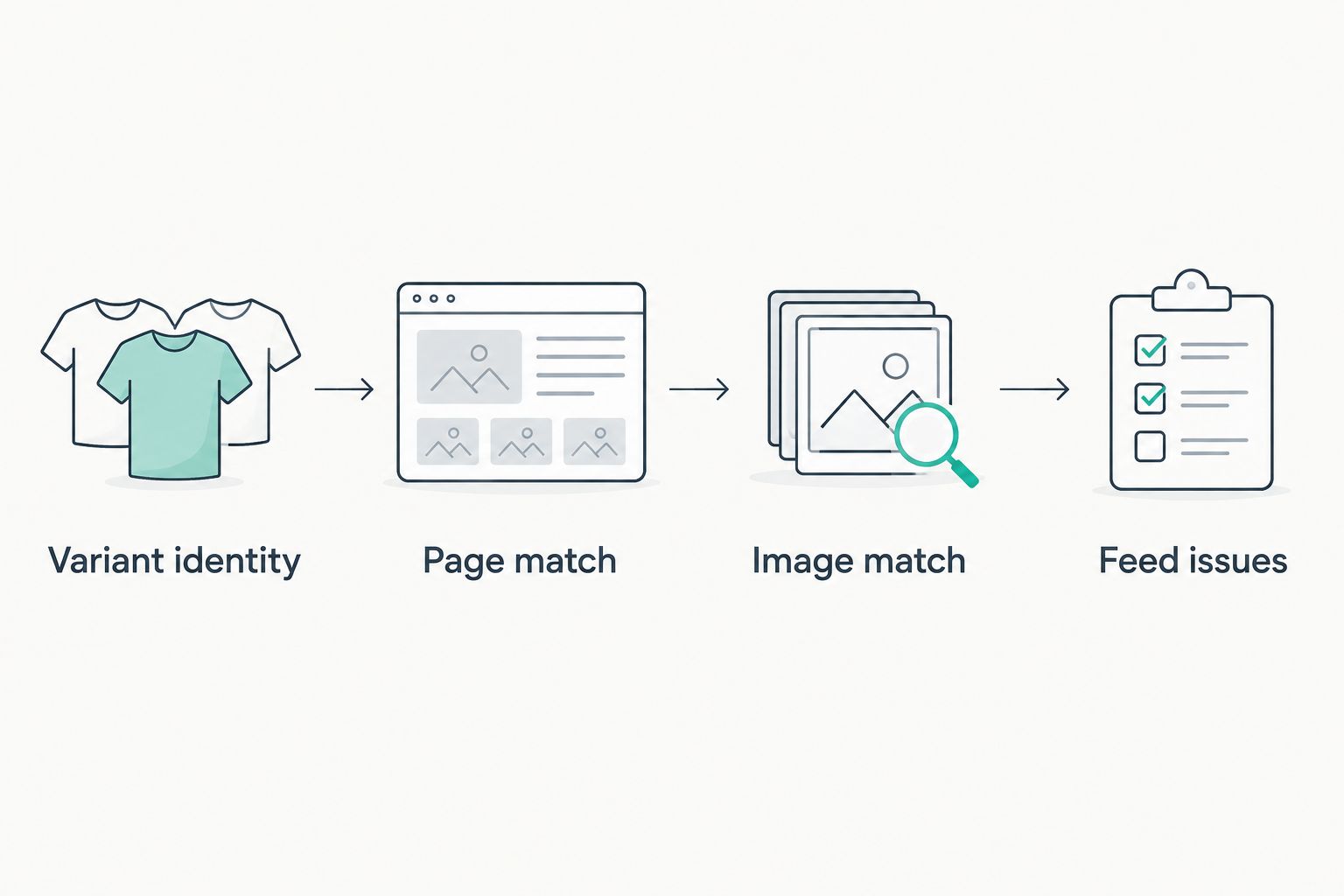
- Choose one garment group as your initial inspection sample. Compare every submitted size-and-colour record with its corresponding retail page, not just the default variant shown when the page first opens.
- Check Variant identity. Each distinct variant needs its own stable identifier, while related variants share the correct group identifier. Preserve those identifiers when descriptions change.
- Check Page match. Open the submitted destination and confirm that its title, selected variant and transaction information describe the same offer as the feed record.
- Check Image match. Verify that the submitted image shows the correct garment and colour. A different colourway is not an interchangeable illustration.
- Check Feed issues. Open the relevant product record in Merchant Center and read the stated issue. Correct the underlying store record, mapping or source file, then submit the correction through your chosen connection.
Expected result: You can trace each inspected record from the store variant to the submitted data and back to the shopper's landing page without a contradictory detail.
Use the same sequence for your remaining garment groups. This 2026 review order separates identity mistakes from page and image mistakes, making the correction specific rather than turning every rejection into a full catalogue rebuild.
Update listings whenever your catalogue changes
The second workflow is ongoing synchronisation. Instead of editing Merchant Center separately whenever your store changes, update the source record and let the chosen connection carry that change through.
For a connector, confirm which edits trigger synchronisation and inspect the resulting product record. For a hosted file, regenerate the export after catalogue changes and use the fetch or upload process configured for that source. Do not assume that saving a spreadsheet also updates the file Google reads.
Keep variant identifiers stable during routine edits. Replacing identifiers unnecessarily breaks continuity and makes it harder to distinguish a corrected record from a newly submitted product.
Verify one complete change end to end before trusting the process across your catalogue. Edit a factual description in your store, check the exported or synchronised value, then inspect the processed record in Merchant Center. Record that verification in your 2026 worksheet.
Free listings and paid Shopping ads are different destinations for eligible product data. Paid Shopping activity also requires the relevant Google Ads setup. A product source connection alone does not create an advertising campaign.
Troubleshooting
Your website is already claimed
Check whether another Merchant Center account under your organisation controls the website. Identify the account owner before attempting a transfer or releasing a claim. Creating another product source does not resolve website ownership.
The feed processes, but products have issues
Open an affected product and read the exact issue and destination it applies to. Correct the named attribute or website problem in the authoritative source. Request a review only when the issue is fixed and Merchant Center offers that action.
Sizes appear as unrelated products
Inspect item_group_id and the variant-level attributes. Related sizes need a consistent group identifier and distinct variant identifiers. Do not solve this by merging separate size records into one generic product row.
Google opens the wrong colour
Test the submitted link outside your signed-in store session. If it opens a default colour rather than the submitted variant, correct the destination or store's variant-selection behaviour. Also check that the image belongs to the submitted colour.
Old details return after a manual correction
Check whether your connector or file export is overwriting the edit. Fix the original store record or transformation rule instead of repeatedly changing the processed record. One clearly owned source is easier to maintain than overlapping corrections.
Customise your workflow
Expand by garment category only after the initial records pass your checks. Shirts, polos, denim and blazers share the same submission principles, but their descriptions need different garment details. Use actual sleeve, fastening, fit and fabric information rather than copying one template across everything.
Keep the submission process separate from merchandising decisions. Your buyer selects the assortment; your product-data process represents that assortment accurately. BLKWD wholesale sourcing does not replace your responsibility for the retail pages, customer transaction or Merchant Center account.
Assign one owner to approve mapping changes. Then give catalogue editors a short checklist covering identifiers, variant grouping, authorised imagery and landing-page consistency. This makes the next catalogue update repeatable without requiring every editor to understand the entire account setup.
FAQ
Can I list wholesale menswear on Google Shopping without a retail website?
This workflow requires your own public retail product pages and a supported purchase journey. A restricted wholesale catalogue or trade application is not a substitute for the product destination.
Can I submit the BLKWD website as my store's product destination?
Submit your own retail product pages when you are the retailer selling the garments. Your supplier's website does not establish your store's ownership or represent your customer transaction.
Is a store connector better than a product feed file?
A store connector is better for reducing repeated edits when it supports your required fields. A hosted file gives more direct control but requires you to maintain the export and its delivery.
Do I need a separate record for every clothing size?
Submit distinct size-and-colour variants as separate records with stable identifiers. Connect genuine variants of the same garment using item_group_id.
What if my supplier has not provided a barcode?
Do not invent a GTIN or substitute your own SKU as a barcode. Check whether the manufacturer assigned an identifier and follow Google's identifier rules for the actual product.
Does Merchant Center approval mean my products will appear immediately?
No. Acceptance establishes eligibility, not guaranteed visibility, placement or sales. Check the relevant destination status and resolve any remaining account or product issues.
Do I need Google Ads to create free listings?
Google Ads is not required solely to submit products for free listings. Paid Shopping advertising requires a separate advertising setup alongside eligible product data.
One last thing
A successful upload is not a successful catalogue. Before expanding, ask someone outside your setup team to open a submitted product destination and identify the exact garment, colour and size being offered. If the answer is ambiguous, fix the page-to-variant connection before adding more records.