
Instead of manually rebuilding product details for every wholesale channel, use an approved catalogue worksheet to list wholesale stock on Faire with consistent descriptions, size variants and images. Start by confirming your right to sell the range through Faire: buying wholesale does not itself establish marketplace selling permission.
- To list wholesale stock on Faire, confirm seller eligibility and marketplace permission before preparing listings.
- Blkwd wholesale menswear includes shirts, polos and trousers; use approved product information rather than copying retail promotions.
- Prepare one worksheet row per size-and-colour variant, then check every image against its product.
- Start with one pilot listing before applying the same process across your wholesale catalogue.
Why this matters
A wholesale buying relationship and permission to distribute a brand through another wholesale marketplace are different things. Confirm both before creating listings. An account that lets you buy products is not evidence that you can offer those products to other retailers.
Blkwd sells men's clothing directly to consumers and offers wholesale options for retailers. Blkwd wholesale menswear suits retailers sourcing shirts, polos and trousers; Faire selling permission needs a separate check.
For your 2026 setup, separate the work into permissions, product records, listing entry and review. That order prevents you from building a catalogue around a selling arrangement that has not been approved.
This guide covers catalogue preparation and controlled listing entry. It does not assume a brand-operated Faire storefront, an approved distributor arrangement or an existing connection between your systems.
Before you start
- Account access and selling permission: You need access to a Faire selling account appropriate to your business, plus confirmation that your relationship with the brand permits the proposed marketplace activity. A retailer buying account is not a substitute.
- Approved catalogue materials: Obtain product identifiers, size and colour options, descriptions, image-use permission, garment information and agreed wholesale trading details. Request a current product file rather than treating a retail page as your wholesale record.
- The non-obvious gotcha: A wholesale account with Blkwd does not establish authorisation to represent the brand on Faire. Confirm your role and Faire's current seller requirements before uploading brand assets or presenting yourself as a distributor.
Resolve permission questions before preparing your import file. The wholesale application-to-first-order workflow covers the sourcing relationship; marketplace listing approval is a separate checkpoint.
Selling-route selection
Choose the route that matches your actual business relationship, not the account that is easiest to access. The distinction matters because the seller identity, product ownership and authority to use brand materials must agree.
| Route | Best for | Advantage | Limitation |
|---|---|---|---|
| Brand-operated selling | The brand's authorised team managing its own wholesale catalogue | Keeps catalogue decisions with the brand | Requires the correct selling account and internal approval |
| Authorised distribution | A distributor with documented rights covering the proposed channel | Gives an approved distributor a defined operating role | Distributor status alone does not establish Faire eligibility |
| Retail purchasing | Retailers sourcing clothing for their own shop | Keeps the relationship focused on buying and retailing | Does not establish permission to create wholesale marketplace listings |
Use the retail purchasing route unless a separate selling arrangement is confirmed. Do not create a brand-style storefront simply because you already hold a wholesale account.
Permission record
- Identify the legal business that would operate the selling account. Record whether it acts as the brand, a distributor or a retailer.
- Ask the brand to confirm the proposed channel, permitted territories and permission to use product names, descriptions and photographs.
- Check Faire's current seller requirements against that exact business arrangement. Complete this check using current 2026 guidance, not an old onboarding note.
- Keep the written approval and account decision with your catalogue records. Assign a person responsible for resolving any restrictions before listing work starts.
Expected result: You have a documented selling route and a clear decision to proceed or stop. If permission remains unresolved, keep the catalogue preparation internal and do not publish it.
Product worksheet configuration
A source worksheet gives you a record to check before information reaches the marketplace. Keep supplier facts separate from your own merchandising copy so an editorial change does not quietly become a product claim.
Catalogue structure
- Create worksheet columns named Product name, Supplier identifier, Colour, Size, Fabric, Description, Image reference and Approval status. These are your worksheet headings, not claimed Faire interface labels.
- Add one row per size-and-colour variant. Preserve the supplier's identifiers exactly; do not use a filename or product-page address as a substitute for a confirmed identifier.
- Group variants under their parent product. Keep differences in sleeve length, fabric or construction visible rather than merging similar-looking garments.
- Record the source and approval date for each product record. Mark your 2026 working copy clearly so colleagues do not edit an older file by mistake.
- Add the agreed trading information in a separate controlled section. Do not derive wholesale terms from a consumer promotion or assume that a retail offer applies to business orders.
Expected result: Every variant has a traceable product record, and every description can be checked against its approved source.
The Blkwd catalogue illustrates why product-level checks matter. DELAIR - SHORT SLEEVE SHIRT is described as blue cotton stretch, while GAUMER - LONG SLEEVE SHIRT is described as navy cotton. Neither description establishes an exact fibre percentage, so do not add one.
By contrast, NOOSA LIGHT BLUE OXFORD SHORT SLEEVE SHIRT and REEDY LIGHT BLUE OXFORD LONG SLEEVE SHIRT explicitly specify 100% cotton Oxford fabrication. Keep that fact attached to those products rather than extending it to the entire shirt range.
Description boundaries
Use a simple evidence rule: if a garment detail has no approved source, leave it out. A polished description is less useful than an accurate one when a retailer is deciding what to order.
- Keep the supplied product name intact in your source record.
- State confirmed colour, fabric and construction details plainly.
- Remove consumer promotion copy from wholesale descriptions.
- Request clarification when source text gives conflicting fit descriptions.
- Do not turn a suggested styling use into a performance or workplace-suitability claim.
This approach makes later corrections easier. You can change the merchandising sentence without losing the underlying garment facts.
Faire listing configuration
Enter products only after your selling route and source worksheet are approved. Use the controls and field names shown in your own selling account; a spreadsheet heading is not automatically a valid marketplace import heading.
Pilot listing
- Select one approved product with clearly documented variants and image permissions. Use it as your pilot listing rather than entering the whole range immediately.
- Open the product-creation workflow provided in your selling account. If you use an import tool, obtain its current template and preserve its required headings and accepted formats.
- Map your worksheet to the account's actual fields. Match product names to product names, variant identifiers to variant identifiers and garment facts to the relevant description or attribute fields.
- Enter the approved size and colour combinations. Check that each option belongs to the correct parent product and that spelling stays consistent throughout.
- Attach the authorised photographs. Check the garment, sleeve length, colour and detail views against the source record before saving your work.
- Review all required account fields against your approved business records. Resolve validation errors from their stated cause rather than inserting guessed values to pass the form.
Expected result: One complete listing record matches the approved source and passes the checks shown in your account.
A manual pilot is best for finding mapping mistakes before they spread, but it requires careful transcription. A template-based process is best for repeatable catalogue entry when your account provides it, but an incorrect column mapping repeats the same mistake across multiple records.
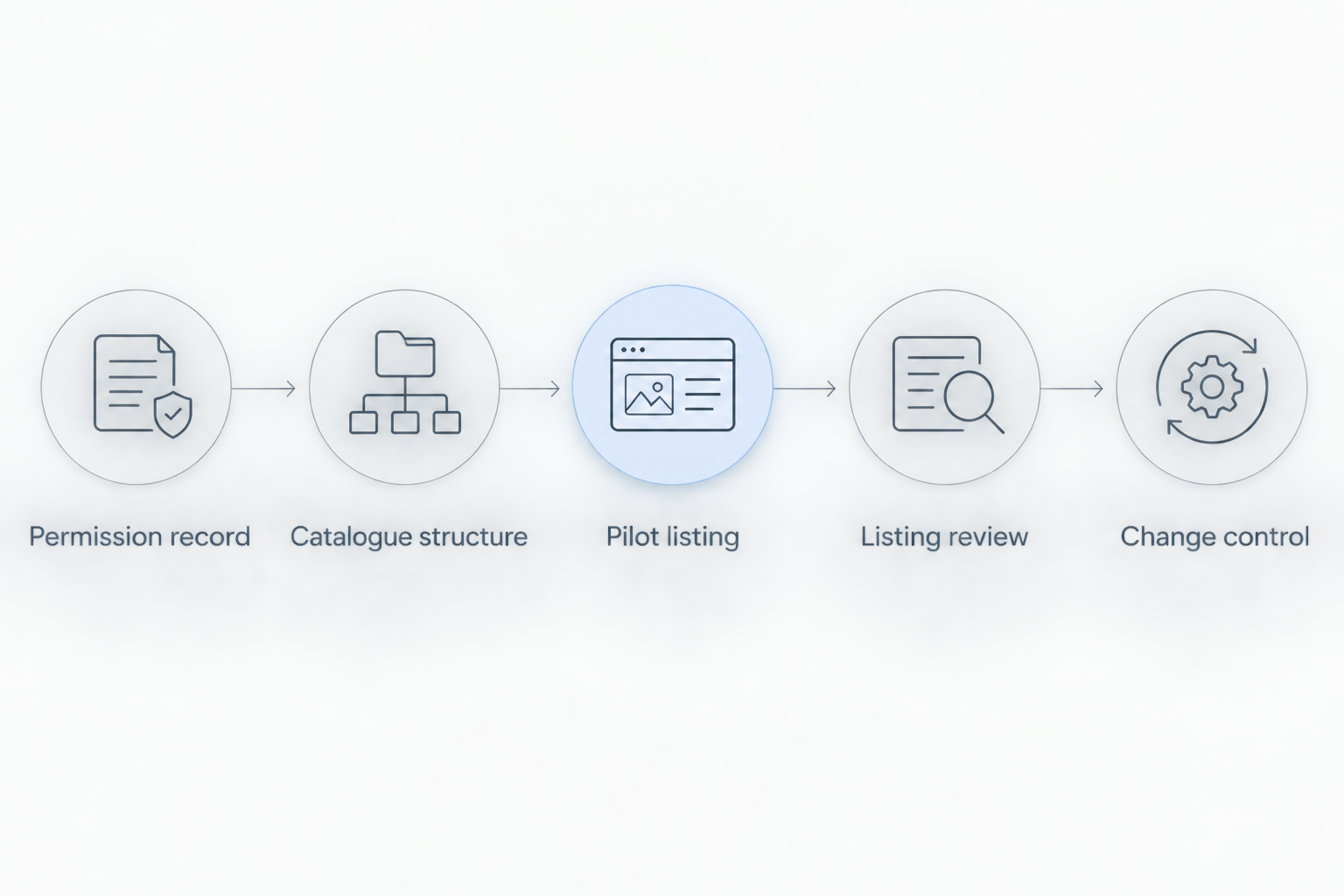
Listing review
- Run a content check against the worksheet. Compare names, fabric statements, colour descriptions, variant grouping and image references.
- Run a separate operational check against the approved selling arrangement. Confirm the seller identity and trading configuration match the business that has permission to sell.
- Ask another authorised team member to review the pilot where your staffing allows. Give that person the source record, not just the finished listing.
- Complete publication only through your account's current approval process. Do not treat a saved record or a successful file upload as proof that publication has completed.
- Apply the corrected mapping to the next products. Keep a record of errors discovered during the pilot so they do not recur.
Expected result: Your pilot has passed two review passes—content and operations—and the remaining catalogue follows the same checked structure.
Update existing products without creating duplicates
A second workflow applies when approved product information changes after initial setup. Treat this as an update to an existing record, not a fresh catalogue upload.
Change control
- Identify the changed product using its confirmed supplier identifier and variant details. Do not match on a shortened product name alone.
- Compare the new source record with your approved worksheet. Separate a wording correction from a genuine change to the garment's specifications.
- Update the worksheet first, recording the date and the person approving the change. Preserve the previous wording in your internal change record.
- Edit the corresponding marketplace record through the controls your account provides. If using an update file, follow the current template's method for identifying existing records.
- Recheck the affected variants and images. Confirm that the change has not overwritten unrelated products or created another parent listing.
Expected result: The existing product reflects the approved change, with a traceable explanation for the edit.
For a 2026 catalogue refresh, use the same process for revised photographs, corrected fabric descriptions and new approved size options. Do not overwrite an entire product record when only one field needs correction.
Troubleshooting
You have a buying account but cannot create listings
Confirm whether you are signed into a retailer buying account or an approved selling account. Do not create another business identity to bypass the restriction. Resolve account eligibility and brand permission before continuing.
Your import file fails validation
Compare the file with the template currently provided in your account. Check required headings, accepted values, file formatting and required cells, then test the corrected file on your pilot record before repeating the upload.
Size options appear under the wrong product
Check the relationship between parent products and variant identifiers in your source file. Correct the grouping at its source, then review the affected marketplace records; fixing only the displayed name leaves the mapping error intact.
A photograph shows a different colour or sleeve length
Match the image reference against the exact product and variant record. Remove the mismatch from your working listing and obtain the correct authorised asset rather than recolouring or altering a garment image to suggest another product.
An update creates a duplicate listing
Check how the update process identifies existing products. Reconcile the duplicate against the original record before making further edits, and correct the matching method in your worksheet or import mapping before the next update.
Customise your workflow
Assign clear responsibility for approvals, catalogue editing and final review. One person can hold several responsibilities, but each decision still needs an owner.
For your 2026 operating routine, keep a short change log containing the product identifier, affected field, approved replacement and review outcome. This is more useful than an unlabelled folder of revised spreadsheets because it explains exactly what changed.
Expand to another sales channel only after the first process is repeatable. Reuse approved garment facts, but check each channel's permission requirements, category structure and data format separately; a successful listing elsewhere is not approval for Faire.
FAQ
Can I list wholesale stock on Faire just because I buy it wholesale?
No. A wholesale purchase does not itself establish permission to sell the brand through another wholesale marketplace. Confirm brand authorisation and Faire seller eligibility for your exact business arrangement before listing.
Does Blkwd have a confirmed Faire integration?
This workflow does not establish a Blkwd Faire integration or seller account. Confirm the intended selling arrangement directly before planning an upload or connection.
Can I copy retail product descriptions into my wholesale listings?
Use only descriptions you have permission to reuse, and check them against an approved product record. Remove consumer promotion wording and do not infer wholesale trading terms from retail copy.
Should every clothing size have its own product listing?
Keep size-and-colour variants clearly identified under the appropriate parent product using the structure supported by your selling account. Maintain a separate worksheet row for each variant so identifiers and images remain traceable.
Can I use photographs from a supplier's website?
Obtain permission before reusing supplier photographs. Confirm that the permission covers the proposed marketplace and that each photograph matches the garment being listed.
Is manual entry better than a catalogue import?
Manual entry is useful for a pilot listing; an import is useful for repeatable entry when your account provides a suitable tool. Both require approved source records, and an import spreads mapping errors if you skip the pilot.
What should I check before publishing a wholesale clothing listing?
Check selling permission, seller identity, product facts, variant grouping, image rights and required account fields. Complete separate content and operational reviews before using the account's publication process.
One last thing
A product name is not a reliable matching key. Keep the confirmed supplier identifier attached to every variant and every revision; similar names, shortened titles and changed wording are poor foundations for catalogue updates.
Before expanding the range, ask a colleague to trace one listing back to its approved garment facts and selling permission. If that trail is unclear, fix the record before repeating the workflow.