
Instead of manually re-entering supplier invoices and hunting for payments, reconcile wholesale invoices in Xero by recording each purchase as a bill and matching it to the outgoing bank transaction. For your 2026 Blkwd wholesale purchases, use bank-feed matching to reduce repeat work, while keeping bill approval and reconciliation under your control.
- Reconcile wholesale invoices in Xero as supplier bills, then match outgoing bank transactions against those bills.
- Blkwd wholesale serves menswear retailers; use Xero for supplier accounting, not as evidence of a supplier integration.
- Bank rules create transactions; matching existing bills prevents duplicate purchase entries.
- Keep supplier references, tax treatment and payment allocations consistent before relying on suggested matches.
Why this matters
An invoice, a payment and a reconciled bank transaction describe different stages of the same purchase. Entering a bill records what you owe; recording a payment reduces that liability; reconciliation connects the accounting record to the bank statement.
Automation should remove re-entry, not remove the checks that prevent duplicate expenses. A bank transaction allocated straight to an expense account does not automatically settle an existing supplier bill.
Blkwd wholesale is best for retailers sourcing men's clothing, not businesses seeking accounting software. Keep supplier purchasing and bookkeeping responsibilities separate: the supplier document supports the purchase, while your Xero records show its accounting treatment.
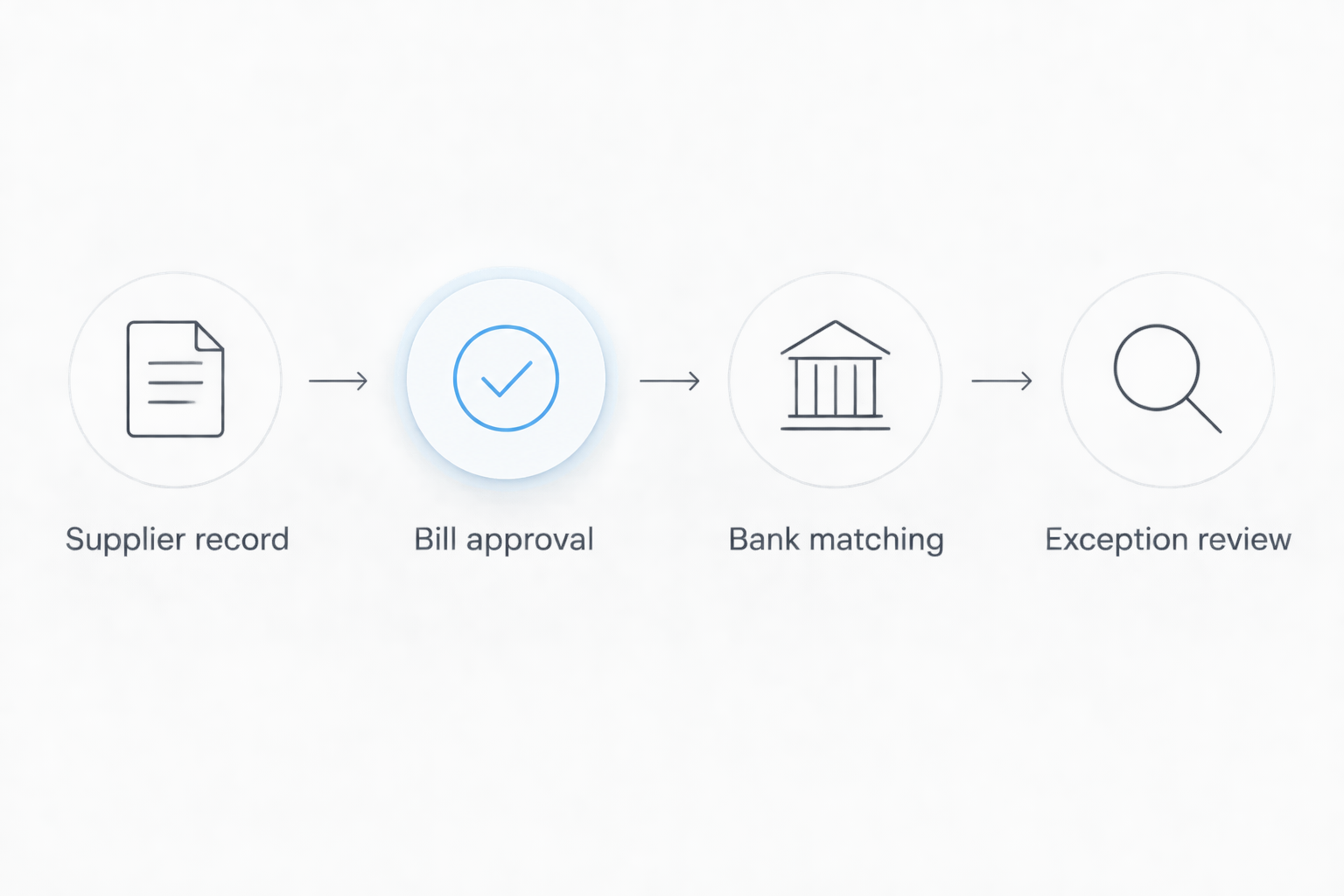
For your 2026 workflow, define success as a traceable chain: supplier document, approved bill, payment and reconciled statement line. A suggested match is a starting point, not proof that every detail is correct.
Before you start
- Accounts and access: Have access to your Xero organisation, supplier bills and the paying bank account. Arrange bill-approval and bank-reconciliation permissions before starting, and connect a supported bank feed or import a bank statement.
- Source documents: Gather the actual supplier invoice, payment confirmation and any credit notes. Use the supplier's legal details and invoice reference from those documents rather than copying an online product listing.
- The gotcha: Check whether the bill or its payment already exists before entering anything. A bill imported through another process plus a bank rule that creates a fresh expense can record the purchase twice.
Agree the purchase-account and GST treatment with your bookkeeper before processing the batch. Do not infer tax treatment from the supplier's location, an order confirmation or a retail product page.
Supplier record and invoice capture
Build the supplier-bill record first. For a retailer buying stock for resale, this is an accounts-payable workflow, not a sales-invoice workflow.
- Search your existing supplier contacts and bills using the invoice reference. Open any apparent match before creating a new record.
- In Bills to pay, select New Bill. In From, choose the existing supplier contact or create the contact using the invoice details.
- Complete Date, Due Date and Reference from the supplier document. Put the supplier invoice number in Reference; keep a purchase-order number separately if your process requires it.
- Enter the invoice lines, select the agreed Account and Tax Rate, and check whether the document uses tax-inclusive or tax-exclusive amounts. Attach the source invoice to the bill.
- Save the bill as a draft until an authorised person checks it against the document and the underlying purchase.
Expected result: You have 1 draft bill for 1 supplier invoice, with a readable attachment and a reference that supports later matching.
For your 2026 records, preserve the supplier's original invoice reference. Adding an internal label must not obscure the identifier your accounts team needs when discussing a payment or credit.
Bill review and approval
Approval establishes which amount is ready for payment. Do not use the bank statement as a substitute for checking the supplier document.
- Open the draft bill and compare the supplier, invoice date, due date and reference with the attachment.
- Check the line descriptions, quantities, tax and total. Resolve any discrepancy between the invoice and your order or receiving records before approving payment.
- Check that the selected account follows your accounting policy for stock purchases. Do not assume all wholesale clothing purchases belong in the same expense account.
- Search for the invoice reference again if the document arrived through multiple channels. An email copy and an uploaded copy still represent the same liability.
- Select Approve only after completing the checks. Leave disputed documents out of the payment run until the discrepancy is resolved.
Expected result: The approved bill represents the amount your business accepts as payable, with the source document available for review.
Use 2 checks before approval: confirm that the document is genuine and confirm that the accounting entry matches it. These checks serve different purposes; correct data entry does not establish that an invoice should be paid.
Bank-feed matching
Use Xero's matching process after the outgoing payment appears in the bank account. Match an existing bill before considering a new spend-money transaction.
- Open Bank accounts, choose the account used for payment and open Reconcile.
- Locate the outgoing statement line. Compare its amount, date, payee and reference with your payment confirmation.
- Review any suggested bill match. If the suggestion is wrong or absent, select Find & Match and search for the relevant outstanding transaction.
- Select the correct bill or recorded payment. Check the remaining balance and confirm that the selected records explain the entire statement line.
- Select OK only when the allocation is correct. Leave unexplained differences unresolved rather than forcing a match to clear the screen.
Expected result: The statement line is reconciled against the correct purchase record without creating a second expense.
Xero's matching suggestions reduce searching, but they do not replace supplier-reference checks. Two unrelated transactions can share the same amount, so an amount-only match is insufficient.
For 2026 processing, use a consistent payment reference wherever your banking process permits it. That makes investigation easier without changing the supplier's invoice number inside Xero.
Matching controls and exception handling
Keep routine matching separate from situations that need an accounting decision. The payment pattern determines which records you select, not whether you create the purchase again.
- Check whether your payment process has already recorded a payment against the bill. If it has, match the statement line to that payment rather than recording another payment.
- For a bank transfer covering several bills, use Find & Match to select the relevant records and compare their combined amount with the transfer.
- For a part payment, allocate only the amount actually paid through the bill-payment or split-allocation process. Check the bill's remaining balance afterwards.
- Apply genuine supplier credit notes to the relevant bills before resolving the final payment balance. Keep the credit document attached to its accounting record.
- Record discrepancies in an exception list with the invoice reference, issue and responsible person. Recheck unresolved items before closing the period.
Expected result: Paid amounts, unpaid balances and credits remain visible without duplicate bills or unexplained adjustments.
Use these 3 records for each exception: the supplier document, the Xero bill and the bank statement line. Compare them before editing the entry that happens to look wrong first.
Match several invoices whenever a combined payment clears
A consolidated supplier payment is the adjacent workflow to a single-invoice match. Use it when the bank statement shows one outgoing transfer covering several approved bills.
- Prepare the list of invoices included in the payment and check it against the payment confirmation or remittance record.
- Open the outgoing statement line in Reconcile, then select Find & Match.
- Select the bills or existing payment records included in that transfer. Exclude invoices that merely share the supplier name.
- Compare the selected total with the outgoing amount, accounting for properly recorded credits or part payments.
- Confirm the reconciliation only when the selected records explain the transfer completely.
Expected result: One bank statement line settles the intended group of invoices without leaving an accidental duplicate payment behind.
Choose the workflow by transaction type, not by the desire to automate everything:
| Workflow | Best for | Advantage | Limitation |
|---|---|---|---|
| Existing-bill matching | Invoiced stock purchases | Connects payment to the recorded liability | Requires accurate bills and payment allocations |
| Combined-payment matching | Transfers covering several bills | Reconciles a grouped payment against its components | Requires the invoice breakdown |
| Bank-rule-created transaction | Recurring transactions not already recorded as bills | Reduces repeated transaction coding | Can duplicate a purchase already entered as a bill |
Use existing-bill matching for invoiced wholesale purchases. Reserve transaction-creation rules for transactions that do not already have an accounting entry and have an agreed coding treatment.
Troubleshooting
The bill does not appear in Find & Match
Search the invoice reference in Bills to pay first. Check whether the bill is still a draft, already paid, assigned to a duplicate supplier contact or recorded in a different organisation.
Approve a valid draft through your normal process. If a payment already exists, look for that payment rather than adding another bill.
Xero suggests the wrong invoice
Reject the suggestion and compare the supplier reference, payment confirmation and amount. Open Find & Match to select the correct record manually.
Do not accept a suggestion solely because the amount agrees. Repeated order values make that shortcut unreliable.
The bank payment is smaller than the invoice
Check for a part payment, an applied credit or a payment discrepancy. Allocate the actual payment and leave any genuine unpaid amount outstanding.
Do not change the invoice total simply to make reconciliation work. A credit requires a supporting credit document, not an unexplained reduction.
The payment appears twice
Inspect both the bill's payment history and the bank transaction. Look for an existing bill payment alongside a separately created spend-money transaction.
Have the authorised bookkeeper correct the duplicate entry and reconcile the surviving record. Do not delete a genuine supplier bill merely because its payment was coded incorrectly.
The totals agree but GST or stock coding is wrong
A balanced reconciliation confirms the payment allocation, not the purchase coding. Review the bill against the tax invoice and your accounting policy.
Correct the underlying coding with your bookkeeper, especially where reporting periods are locked or tax reporting has already occurred.
Customise your workflow
Extend the process around purchasing controls rather than adding automatic approvals. Keep the supplier invoice reference alongside your internal order reference so buying, receiving and accounts staff can discuss the same purchase.
Connect invoice review with your wholesale reorder buying calendar. A planned reorder and an approved supplier bill serve different purposes; neither proves that the goods have arrived.
For your 2026 procedure, assign ownership for invoice capture, bill approval, payment release and exception review. The same person can hold multiple responsibilities, but the procedure should identify who checks each stage.
Keep accounting automation separate from inventory updates. Settling a bill does not establish which sizes, colours or quantities are ready to sell.
FAQ
How do I reconcile wholesale invoices in Xero?
Record the supplier invoice as a bill, approve it after checking the source document, then match the outgoing bank statement line against the bill or its existing payment. Do not create a fresh expense for a purchase already recorded as a bill.
Can Xero reconcile supplier invoices automatically?
Xero can suggest matches during bank reconciliation, but a suggestion still needs checking against the supplier reference and payment details. Treat suggested matching and unattended reconciliation as different levels of automation.
Should a wholesale purchase be a bill or a sales invoice?
A retailer's purchase from a wholesale supplier belongs in the supplier-bill workflow. A sales invoice records money a customer owes your business.
Does this workflow require a Blkwd integration?
No, this workflow uses supplier documents, Xero bills and bank transactions rather than a supplier-specific integration. Record purchases from the actual invoice and match the payment in your own accounting organisation.
Can I match one bank payment to several supplier invoices?
Yes, use Find & Match to select the bills or existing payments covered by the transfer. Confirm that the selected total and payment breakdown agree before reconciling.
Should I use a bank rule for wholesale stock invoices?
Use existing-bill matching when the wholesale purchase is already recorded as a bill. A rule that creates a new expense can duplicate that purchase instead of settling the liability.
What happens if I only pay part of an invoice?
Allocate the amount actually paid and leave the unpaid balance outstanding. Do not reduce the original invoice total unless a valid supplier adjustment supports the change.
One last thing
A reconciled bank account can still contain incorrectly coded purchases. Before closing a period, inspect the supplier's outstanding bills as well as the bank reconciliation: the bank balance alone does not confirm that every invoice, credit and payment was allocated correctly.