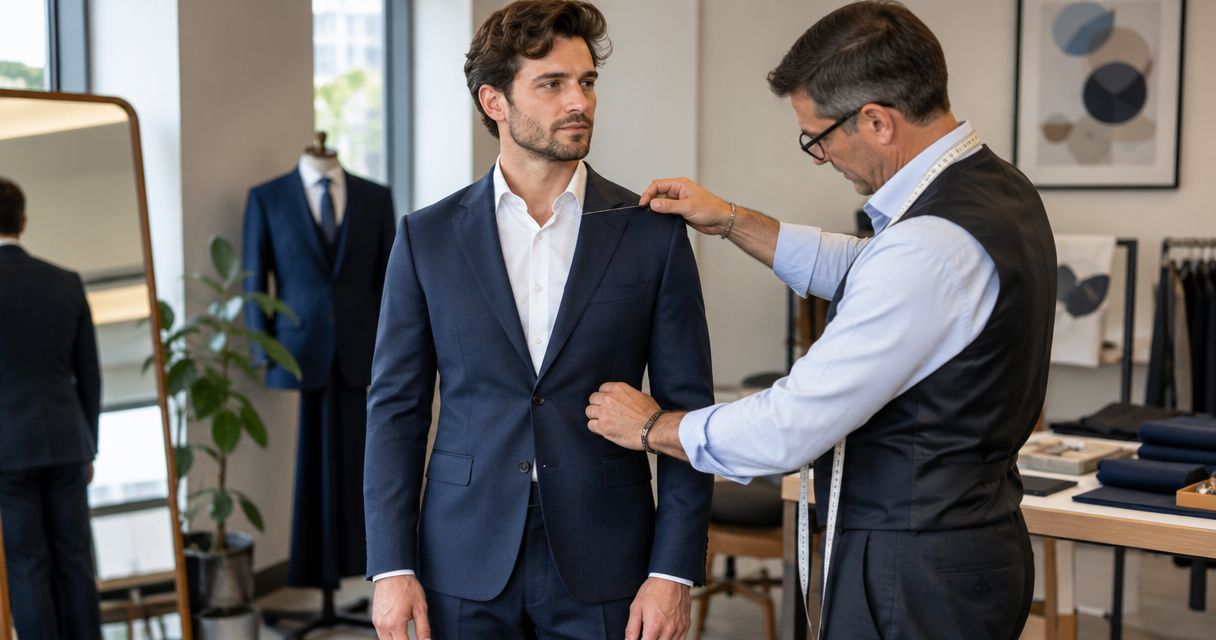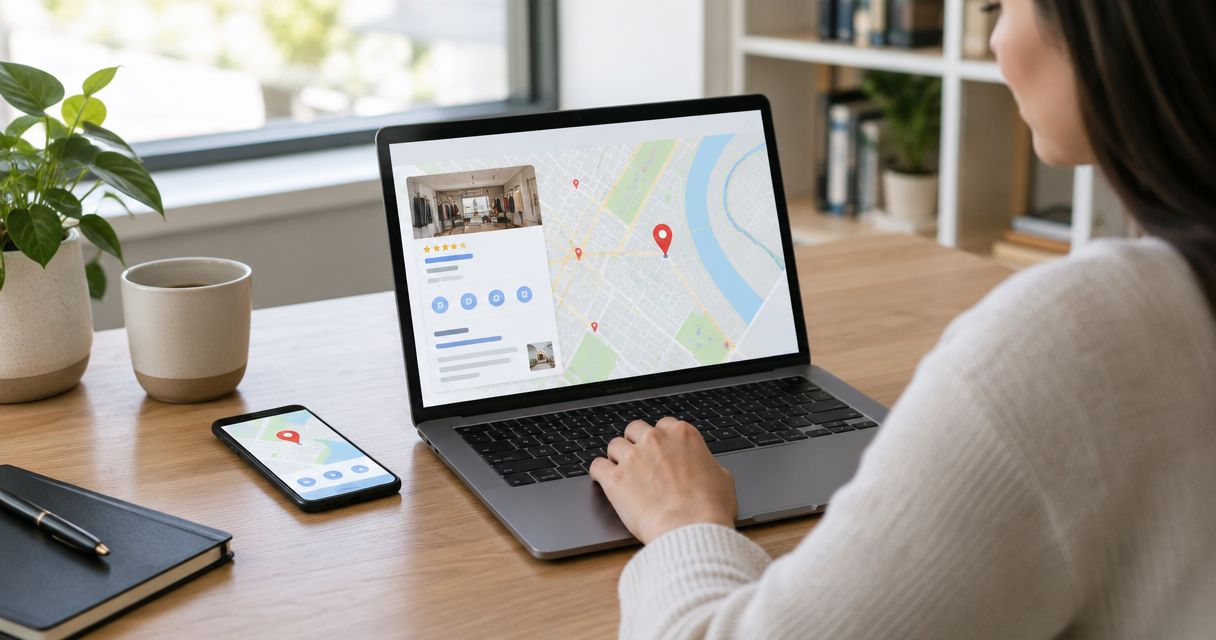
Instead of repeatedly explaining that your shop carries BLKWD, add that relationship to your Google Business Profile description and support it with accurate shop photos. There is no dedicated stockist field: update your retailer’s existing profile, keep its real business name unchanged, and check the published result.
- To add stockist to Google Business Profile, describe the retailer’s relationship with BLKWD; there is no dedicated stockist field.
- Keep your shop’s real business name and category unchanged unless the underlying business details have changed.
- Use accurate shop photos to support your menswear description without implying a separate branded location.
- Check the public profile after editing; saving a change does not guarantee immediate publication.
Why this matters
Your Google Business Profile represents your shop, not every label you sell. Adding a clothing brand to the wrong field confuses that distinction and risks breaching Google’s business-name rules.
BLKWD sells men’s clothing directly to consumers and offers wholesale options for retailers. That makes the relationship straightforward to describe: your business is the retailer, and the label is part of your menswear range.
For retailers already selling BLKWD menswear, the business description is the clearest place to state that relationship. It explains what customers can expect without changing your shop’s identity.
For your 2026 profile update, treat this as an accuracy task, not a ranking shortcut. A brand mention does not guarantee visibility for searches containing that brand, and it does not create an official partnership badge.
Before you start
- Confirm your access and eligibility. Sign in to the Google Account that owns or manages your shop’s Business Profile. Use the existing profile for an eligible customer-facing business; online-only retail businesses are not eligible merely because they sell clothing.
- Prepare your materials. Have a factual description of your shop, confirmation of the retail relationship, and photos you own or have permission to publish. Use your own shop details, not the supplier’s address or website as a substitute.
- Check the naming trap. A stockist relationship is not a reason to rename your profile or create a second listing. Google’s description limit is 750 characters, and descriptions must not contain links or promotional offers.
Do not describe yourself as an authorised stockist unless that status has been explicitly confirmed. Buying through a wholesale channel does not justify adding certification or exclusivity claims.
Profile identity
Start with the profile you already manage. Getting the correct location and account matters more than adding the brand name quickly.
- Sign in to the Google Account associated with your shop’s Business Profile.
- Search Google for your business name and location. Select the correct managed business if your account controls several locations.
- Select Edit profile to inspect the business details.
- Check that the name matches the name customers encounter on your shopfront and other real-world business materials.
- Check the category against what your shop actually does. Do not replace a clothing-shop category with a supplier’s brand name.
- Leave accurate identity details unchanged. Only correct the name, address or category when the underlying information is genuinely wrong.
Expected result: you are editing the existing retailer profile for the correct location, with its real business identity intact.
For a retailer operating several shops in 2026, check each location separately. A brand relationship at one shop does not establish the same relationship at every other location.
Google’s guidelines generally call for 1 profile per business location, subject to its exceptions for distinct eligible businesses, departments and practitioners. A clothing label on your rails does not itself establish another eligible business at your address.
Business description
Use the description to explain the retail relationship in ordinary language. The goal is a useful statement customers can understand, not a list of repeated search terms.
- Within Edit profile, open About and find Description. Interface layouts differ between Google Search and Maps; use the business-description field rather than changing the business name.
- Write a short introduction to your shop: what it sells, who it serves, and the relevant local context.
- Add one factual sentence explaining that your shop carries the brand. Mention only clothing categories that your shop genuinely sells.
- Keep the complete description within 750 characters. Remove website addresses, promotional offers and unrelated claims.
- Select Save. Check whether Google shows the edit as accepted, pending or not approved before treating it as published.
Expected result: the description communicates your shop’s menswear offering and the brand relationship without changing the profile’s name or category.
A safe sentence pattern is: state your shop’s name, say that it carries BLKWD menswear, and identify the clothing categories relevant to that location. Write the actual sentence from your own records rather than copying an example that assumes what your shop sells.
Do not paste the search phrase “add stockist to google business profile” into the description. That phrase describes an administrative task, not your business.
For your 2026 wording, favour durable facts over campaign language. A clear description of the retailer and its clothing range needs less correction than a paragraph built around temporary promotions.
Which profile element should you use?
These elements have different jobs. Use them together only when each adds information the customer needs.
| Profile element | Best for | Advantage | Limitation |
|---|---|---|---|
| Business description | Explaining the brand relationship | Gives customers direct written context | Has a character limit and is subject to review |
| Shop photos | Showing the retail setting | Helps customers recognise the shop and its clothing presentation | Does not replace a clear written explanation |
| Website field | Directing customers to the retailer’s own website | Connects the profile with fuller shop information | Should not redirect customers to a supplier instead of the business represented |
Use the description for the statement, photos for context, and your own website for detail. None of these elements grants official stockist status.
Shop photos
Publish images that help customers understand the actual shop. A supplier’s studio image shows a garment, but it does not demonstrate how your retail location presents it.
- Photograph the shopfront, interior or relevant menswear display. Keep customer faces and private information out of the frame unless you have appropriate permission.
- From your managed profile, select Add photo and follow the upload prompts.
- Choose images that accurately represent the location. Avoid using a brand logo as the shop’s identity unless it genuinely represents the business itself.
- Check the resulting images in the public profile after Google processes them.
Expected result: customers can recognise the retailer and understand the physical shopping environment without mistaking it for a separate brand-owned shop.
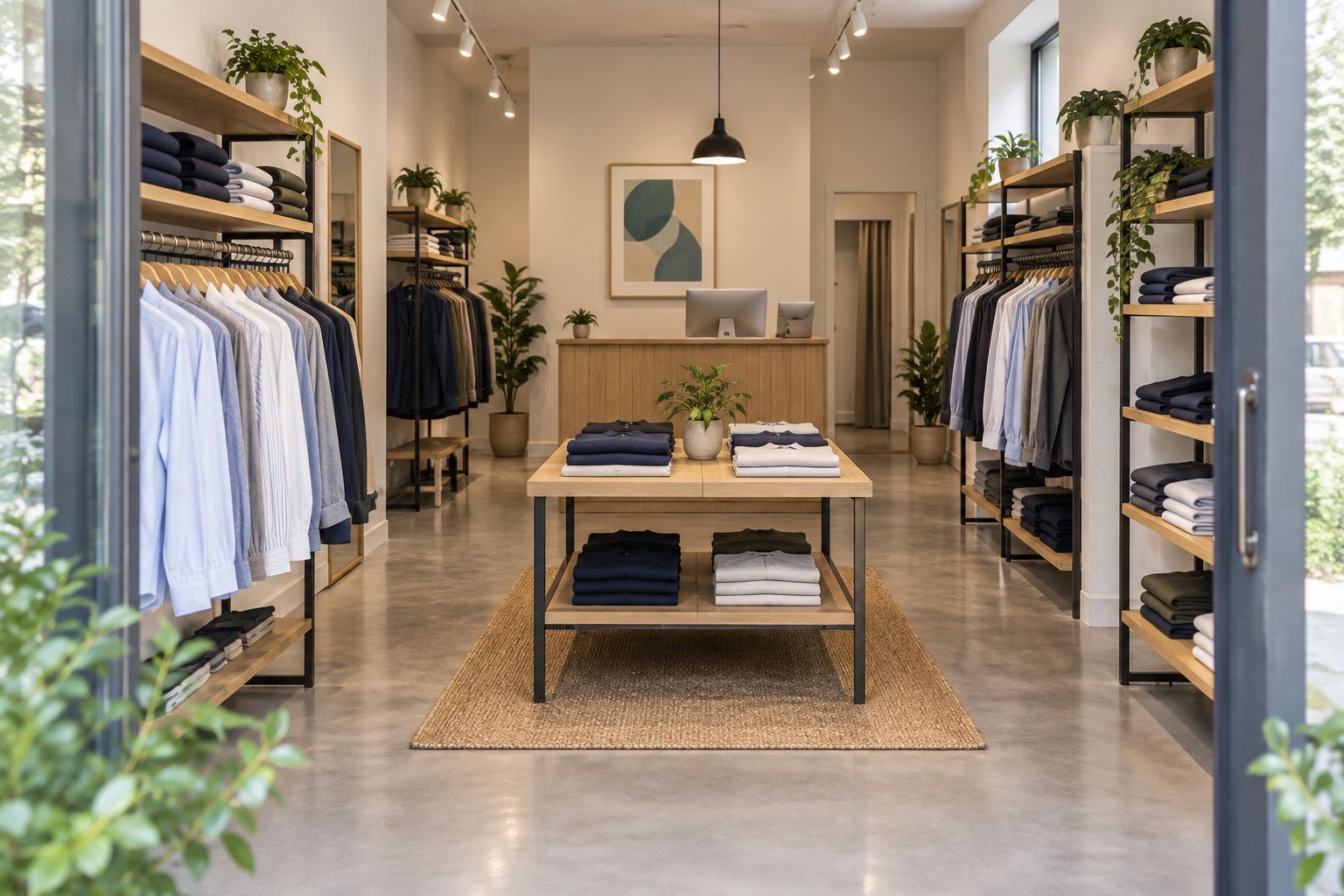
Use images you are entitled to publish. Access to a supplier’s product catalogue does not automatically establish permission to reuse every photograph on a third-party platform.
Public check
Saving an edit and confirming its public appearance are separate tasks. Complete both before telling staff the profile has been updated.
- Open the business listing in Google Search or Maps while signed out, or use a private browser window.
- Confirm that the shop name remains correct and the description communicates the relationship accurately.
- Inspect the photos and website destination. Check that they represent the retailer rather than another business.
- Return to the management view if the change is missing. Inspect its status instead of repeatedly submitting different versions.
Expected result: the public listing accurately represents your retailer, and any unpublished edit has a clear follow-up action.
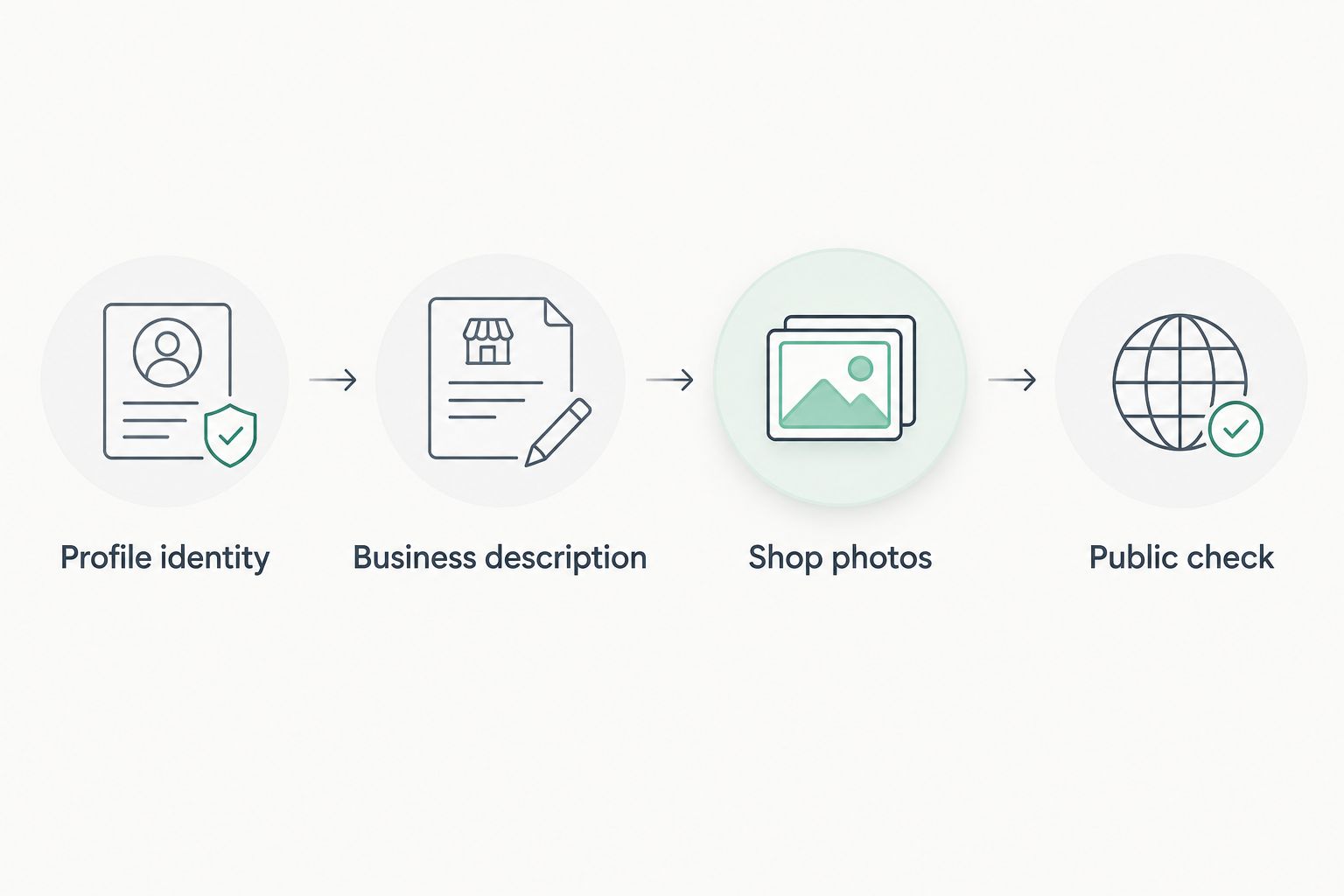
The setup sequence is simple: confirm the profile identity, edit the business description, add appropriate shop photos, then perform the public check. Keep that order so a photo upload never distracts you from an incorrect business name.
Update the description when your range changes
The adjacent workflow is maintenance: revise the description when the retail relationship or the clothing categories you describe change. This is not an automatic stockist integration, and editing Google does not update your website.
- Assign responsibility for profile accuracy to a named person in your business.
- When the relevant retail relationship changes, review the existing description against the shop’s current offering.
- Remove statements that are no longer true. Keep useful shop information rather than rewriting the whole paragraph unnecessarily.
- Review the associated photos and your own website content for conflicting statements.
- Save the description and repeat the public check.
Use 2 review checks per change: one before submission for factual accuracy, and one after publication for the customer-facing result. This is a recommended working routine, not a Google requirement.
For your 2026 maintenance process, connect this review to the person who already updates the shop’s website. Shared responsibility without a named owner makes conflicting descriptions harder to resolve.
Troubleshooting
There is no stockist field
You have not missed a setting. Google Business Profile does not provide a general field for declaring every brand a retailer carries. Use the business description; do not force the relationship into the business name, category or address.
The description is rejected
Check Google’s description rules before submitting again. Remove links, promotional wording, irrelevant material and unsupported claims. Confirm that the description stays within the character limit, then use the edit status and any rejection explanation to guide the correction.
The saved edit is not visible publicly
Check whether the edit is still under review or was not approved. A saved change is not proof of publication, and Google does not guarantee an immediate update. Avoid making repeated speculative edits while you are trying to understand the status.
The profile controls are missing
Confirm that you are signed in to the account with management access and have selected the correct business. If another person manages the listing, request access through the appropriate ownership process rather than creating a duplicate profile.
Customers mistake your shop for the brand’s own store
Review the business name, logo, description and website destination together. Make the retailer’s identity explicit and describe the label as part of its offering. Correct any wording that implies brand ownership, exclusivity or authorisation without evidence.
Customise your workflow
Once the profile is accurate, make the same retail relationship clear on your own website. Consistency means matching the facts, not copying the same paragraph into every channel.
If you use Shopify, the guide to listing BLKWD wholesale stock on Shopify covers the adjacent store-listing workflow. Keep product details on the relevant retailer pages and retain the retailer’s own website as the profile destination.
For multiple locations, maintain a simple record of the location, description owner, last review date and unresolved edit status. Use that record to prevent one shop’s wording from being copied to another without checking the facts.
Make your 2026 workflow accountable, not complicated. One responsible editor and a public check are more useful than frequent description rewrites without a clear reason.
FAQ
How do I add a stockist to Google Business Profile?
Use the retailer’s business description to explain which brand it carries. Google Business Profile has no dedicated stockist field, so keep the shop’s real business name and category intact.
Can I add BLKWD to my Google business name?
Do not add BLKWD to the business name merely because your shop sells its clothing. The profile name must reflect the business’s real-world name, not a list of labels it carries.
Can I call my shop an authorised stockist?
Use authorised stockist wording only when that status has been explicitly confirmed. A wholesale purchasing relationship alone does not justify claims of authorisation or exclusivity.
Do I need a separate Google profile for each clothing brand?
No, selling another clothing brand does not by itself justify a separate Business Profile. Represent the eligible retail business at the location and explain its offering in the description.
Will mentioning a clothing brand improve my Google ranking?
A brand mention does not guarantee better rankings or visibility for brand-related searches. Use the description to explain the business accurately, not as a substitute for a truthful and complete profile.
How long can my Google Business Profile description be?
The business description can contain up to 750 characters. Keep the wording relevant to your business and exclude links and promotional offers.
Why is my new description not showing on Google?
The edit can be under review or not approved. Inspect the status in the management view, check the description against Google’s rules, and confirm the result on the public listing.
One last thing
A stockist statement is a claim about your retailer, not a setting supplied by the clothing brand. The most useful final check is to read the profile as a first-time customer: can you tell which business operates the shop, what it sells, and where its website leads?
If the retailer’s identity is less clear after the edit, simplify the wording before adding anything else.